 OpenMock Blog
Device mockups
MacBook Pro 14" mockup: 3D images and videos in your browser
Put a screenshot or recording on a 3D MacBook Pro 14" and export PNG or MP4 — free, no signup, nothing uploaded. Specs, steps and store sizes.
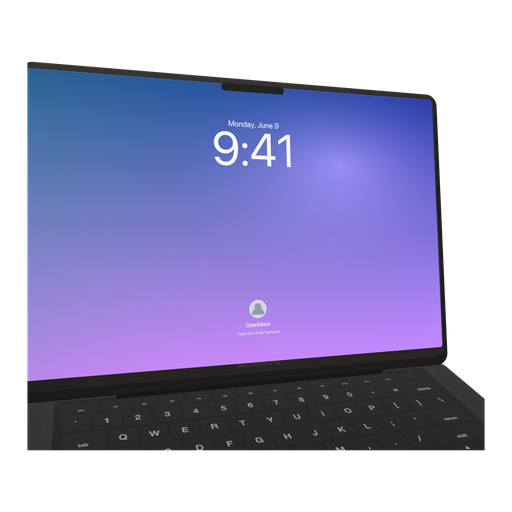
The 14-inch MacBook Pro is the laptop most developers, designers and founders actually own, which makes it the honest choice for a product video: it is what your customer sees on their own desk. It is also easier to compose than the 16-inch — a smaller lid leaves room for a phone beside it or a headline above it — and OpenMock's model animates its lid exactly like the larger one.
MacBook Pro 14" screen specs you need for a clean mockup
| Display | 14.2-inch Liquid Retina XDR, ProMotion |
| Native resolution | 3024 × 1964 px |
| Aspect ratio | ≈16:10 |
| Mac App Store screenshots | 16:10 — 1280 × 800, 1440 × 900, 2560 × 1600 or 2880 × 1800 |
| Mac App Store preview video | 1920 × 1080, 15–30 s |
The 14-inch shares the 16-inch's 16:10 proportions at a smaller pixel count, so the same screenshots work on both models; what changes is how much of the frame the laptop occupies at a given camera distance.
How to make a MacBook Pro 14" mockup (about two minutes)
- Open OpenMock in a desktop browser. There is no account and no upload — your files stay on your machine.
- In the Mockup panel pick MacBook Pro 14". Choose the finish first; the lighter finish shows the keyboard deck and lid reflections more clearly.
- Drag a screenshot or a screen recording onto the canvas. 3024 × 1964 native, or any 16:10 capture. A 16:9 screen recording is fine — the small letterbox falls inside the bezel.
- Set the canvas ratio in the top bar — 16:9 for most uses; 1:1 works surprisingly well with the lid half-open and the camera above.
- Frame it: pan, zoom, tilt and roll the camera, and set the lid to about 105° so the notch and the display corners read as a MacBook at a glance. Choose a background (solid, gradient, image or blurred image) and a lighting environment (Studio, Concrete or Dark Room).
- Export. Image gives you PNG, JPEG or WebP at any preset or custom size — transparent PNG included — free forever. Video renders an MP4 with motion blur and optional audio.
Turning the MacBook Pro 14" into a promo video
Pair the 14-inch with an iPhone 17 Pro in the same scene to show a cross-platform product, and give each device its own beat: hold on the laptop while the recording plays, then keyframe a camera swing that brings the phone into focus with depth of field. Two shots, one fade, ten seconds.
Video exports are free up to 720p at 30 fps with a small watermark. Pro ($5/month or $36/year) removes the watermark and unlocks 4K and 60 fps, plus project save/open so you can come back to a scene later.
Where a MacBook Pro 14" mockup works best
- Developer tools, design apps and B2B SaaS where the buyer uses a 14-inch
- Laptop-plus-phone scenes for universal or synced apps
- Documentation and help-centre imagery (export transparent PNGs at exact pixel sizes)
- Square social posts — the smaller lid composes well in 1:1
Tips that make MacBook Pro 14" renders look real
- A 10° yaw plus a camera slightly above screen height is the most flattering default
- Match the screen recording's system appearance (light/dark) to the environment: Dark Room for dark mode, Studio for light
- Add a faint contact shadow by keeping the ground plane visible below the laptop
- Grain at a low setting adds a photographic quality to static hero renders; turn it off for UI-heavy videos
FAQ
Is the MacBook Pro 14" mockup free?
Yes. Image exports (PNG, JPEG, WebP, including transparent PNG) are free with no signup and no watermark. Video exports are free at up to 720p/30 fps with a watermark; Pro removes it and unlocks 4K and 60 fps.
What resolution should my MacBook Pro 14" screenshot be?
Match the native display, 3024 × 1964 px, or any image with the same aspect ratio (≈16:10). OpenMock scales and fits the screen automatically, so a slightly different size still works — just avoid upscaling small captures.
Can I use a screen recording instead of a screenshot?
Yes. Drop an MP4 or MOV (including HEVC recordings straight from an iPhone or Mac) onto the MacBook Pro 14"; the recording plays on the screen and you can trim it, change its speed and animate the camera around it before exporting an MP4.
Which MacBook Pro mockup should I pick, 14-inch or 16-inch?
For composition, the 14-inch leaves more room around the device and pairs well with a phone; the 16-inch fills the frame and reads more dramatic. Screenshots are interchangeable — both are 16:10.
Does OpenMock have a MacBook Air mockup?
Not at the moment. The laptop lineup is the MacBook Pro 14-inch, MacBook Pro 16-inch and the MacBook Neo. Any 16:10 screenshot fits all three.