 OpenMock Blog
Device mockups
iPhone 17 Pro mockup: 3D images and videos in your browser
Put a screenshot or recording on a 3D iPhone 17 Pro and export PNG or MP4 — free, no signup, nothing uploaded. Specs, steps and store sizes.
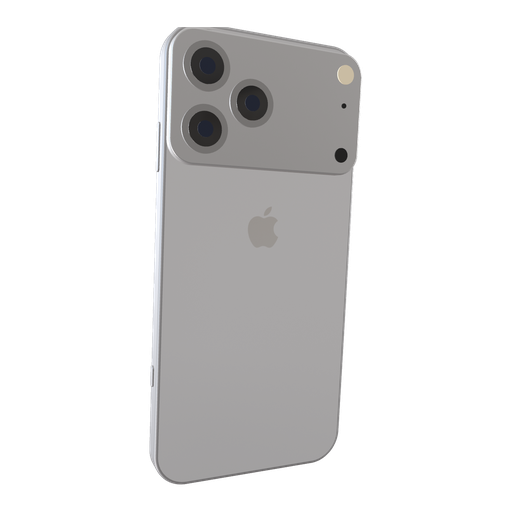
The iPhone 17 Pro is the sweet spot for product shots: the same camera plateau and titanium look as the Pro Max in a frame that leaves room for headlines. If your promo has to work in a square or a 4:5 feed crop, the Pro's shorter height is easier to compose than the Max. OpenMock's model is fully 3D — orbit it, tilt it, flip it to show the plateau — and it renders sharp at 4K.
iPhone 17 Pro screen specs you need for a clean mockup
| Display | 6.3-inch Super Retina XDR, ProMotion |
| Native resolution | 1206 × 2622 px (portrait) |
| Aspect ratio | ≈19.5:9 |
| App Store screenshot slot | 6.3-inch — 1179 × 2556 (optional; Apple scales the 6.9-inch set if you skip it) |
| App Store preview video | 886 × 1920 portrait or 1920 × 886 landscape, 15–30 s |
Note the mismatch: the 17 Pro's native 1206 × 2622 is not the 6.3-inch App Store slot's 1179 × 2556. Screenshots share an aspect ratio, so a native capture on the OpenMock screen looks right; when you export for the store, set the custom size Apple lists rather than the device's native pixels.
How to make an iPhone 17 Pro mockup (about two minutes)
- Open OpenMock in a desktop browser. There is no account and no upload — your files stay on your machine.
- In the Mockup panel pick iPhone 17 Pro. Pick the finish that matches your brand palette; the dark finish photographs best on light backgrounds.
- Drag a screenshot or a screen recording onto the canvas. Any 19.5:9 capture works — 1206 × 2622 native, or a 6.9-inch capture that OpenMock fits to the screen.
- Set the canvas ratio in the top bar — 1:1 or 4:5 for Instagram and LinkedIn feeds, 9:16 for Reels and Shorts, 16:9 for YouTube and X.
- Frame it: pan, zoom, tilt and roll the camera, then nudge the flap a few degrees so one edge shows — a completely flat phone reads as a 2D template. Choose a background (solid, gradient, image or blurred image) and a lighting environment (Studio, Concrete or Dark Room).
- Export. Image gives you PNG, JPEG or WebP at any preset or custom size — transparent PNG included — free forever. Video renders an MP4 with motion blur and optional audio.
Turning the iPhone 17 Pro into a promo video
For a 15–30 second clip, structure it as three shots: a slow reveal from a tilted angle, a straight-on hold while the screen recording does its thing, and a pull-back into a text shot with the tagline. Each shot is its own camera keyframe set on the timeline; the fade transitions are set per shot.
Video exports are free up to 720p at 30 fps with a small watermark. Pro ($5/month or $36/year) removes the watermark and unlocks 4K and 60 fps, plus project save/open so you can come back to a scene later.
Where an iPhone 17 Pro mockup works best
- Square and 4:5 social posts where the Pro Max would crop awkwardly
- Feature announcement videos — the Pro is what most of your users actually hold
- Side-by-side scenes with a MacBook (the Pro's height balances better against a laptop lid)
- Optional 6.3-inch App Store screenshots for teams that want pixel-exact assets per size class
Tips that make iPhone 17 Pro renders look real
- Screen glow with a light UI: lower the glow to keep the frame from washing out — bright screens need less
- Use the Studio environment for e-commerce-clean product shots and Concrete for editorial warmth
- Turn on the glass border effect when the phone sits on a dark gradient — the thin highlight reads as premium
- Export a transparent PNG once and reuse it across your website, deck and press kit
FAQ
Is the iPhone 17 Pro mockup free?
Yes. Image exports (PNG, JPEG, WebP, including transparent PNG) are free with no signup and no watermark. Video exports are free at up to 720p/30 fps with a watermark; Pro removes it and unlocks 4K and 60 fps.
What resolution should my iPhone 17 Pro screenshot be?
Match the native display, 1206 × 2622 px (portrait), or any image with the same aspect ratio (≈19.5:9). OpenMock scales and fits the screen automatically, so a slightly different size still works — just avoid upscaling small captures.
Can I use a screen recording instead of a screenshot?
Yes. Drop an MP4 or MOV (including HEVC recordings straight from an iPhone or Mac) onto the iPhone 17 Pro; the recording plays on the screen and you can trim it, change its speed and animate the camera around it before exporting an MP4.
Should I make 6.3-inch App Store screenshots at all?
Only the 6.9-inch set (1320 × 2868) is required; Apple scales it for smaller iPhones if you provide nothing else. Add a 6.3-inch set when your layout has small text that scaling would soften, or when you want per-size-class control.
Can I show the back of the iPhone 17 Pro?
Yes — the model is complete on all sides. Use the flap/rotation controls to turn it; the camera plateau, lenses and finish are all modelled.