 OpenMock Blog
Device mockups
Pro Display XDR mockup: 3D images and videos in your browser
Put a screenshot or recording on a 3D Pro Display XDR and export PNG or MP4 — free, no signup, nothing uploaded. Specs, steps and store sizes.
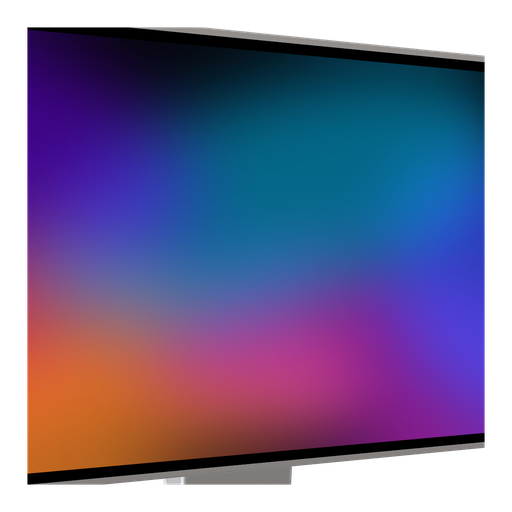
Sometimes the product is not an app at all — it is a website, a dashboard, a video tool, a game. Those want a monitor, not a phone. The Pro Display XDR mockup is a 32-inch, 6K, 16:9 panel on Apple's stand: a large clean surface for a browser recording, with enough presence to anchor a hero image on its own. OpenMock renders the lattice-back stand and the thin bezel as a single procedural model.
Pro Display XDR screen specs you need for a clean mockup
| Display | 32-inch Retina 6K XDR |
| Native resolution | 6016 × 3384 px |
| Aspect ratio | 16:9 |
| Mac App Store screenshots | 16:10 sizes only (1280 × 800 to 2880 × 1800) — the XDR is a 16:9 display, so crop or letterbox for the store |
| Typical use | Web apps, dashboards, desktop software, video tools |
The XDR is 16:9, which makes it the natural monitor for web apps and 16:9 screen recordings — a browser recording fills the panel with no bezel tricks. Mac App Store screenshots, by contrast, are strictly 16:10, so use the MacBook models for store assets and the XDR for everything else.
How to make a Pro Display XDR mockup (about two minutes)
- Open OpenMock in a desktop browser. There is no account and no upload — your files stay on your machine.
- In the Mockup panel pick Pro Display XDR. The XDR is large — pull the camera back further than you would for a laptop and use the 21:9 canvas for a cinematic header.
- Drag a screenshot or a screen recording onto the canvas. 16:9 screen recordings of a browser at 1920 × 1080 or 3840 × 2160 fill the panel exactly; 16:10 Mac captures get a thin band inside the bezel.
- Set the canvas ratio in the top bar — 16:9 for videos and web heroes, 21:9 for ultra-wide headers, 1:1 when the monitor should sit dead centre.
- Frame it: pan, zoom, tilt and roll the camera, and keep the camera near screen height with a modest 5–10° yaw — monitors look wrong shot from above. Choose a background (solid, gradient, image or blurred image) and a lighting environment (Studio, Concrete or Dark Room).
- Export. Image gives you PNG, JPEG or WebP at any preset or custom size — transparent PNG included — free forever. Video renders an MP4 with motion blur and optional audio.
Turning the Pro Display XDR into a promo video
Monitors want confidence, not motion: a slow, almost imperceptible push-in over 8–10 seconds while a browser recording scrolls a landing page or walks a dashboard. Dark Room with screen glow makes the panel's light spill onto the stand; Studio keeps it product-catalogue clean. Let the recording carry the story.
Video exports are free up to 720p at 30 fps with a small watermark. Pro ($5/month or $36/year) removes the watermark and unlocks 4K and 60 fps, plus project save/open so you can come back to a scene later.
Where a Pro Display XDR mockup works best
- SaaS and web app launch videos — a browser recording on a 6K panel
- Website and landing-page redesign reveals
- Video, audio and creative desktop tools where a large workspace is the pitch
- Ultra-wide 21:9 hero headers for marketing sites
Tips that make Pro Display XDR renders look real
- Record the browser at exactly 16:9 (1920 × 1080 or 4K) so the capture fills the panel edge to edge
- Hide browser chrome or use a kiosk-style recording; tabs and bookmarks bars date a video instantly
- Depth of field on the stand's lattice back adds photographic depth without touching the screen
- Use the blurred-image background with a desk photo for an editorial, in-situ look
FAQ
Is the Pro Display XDR mockup free?
Yes. Image exports (PNG, JPEG, WebP, including transparent PNG) are free with no signup and no watermark. Video exports are free at up to 720p/30 fps with a watermark; Pro removes it and unlocks 4K and 60 fps.
What resolution should my Pro Display XDR screenshot be?
Match the native display, 6016 × 3384 px, or any image with the same aspect ratio (16:9). OpenMock scales and fits the screen automatically, so a slightly different size still works — just avoid upscaling small captures.
Can I use a screen recording instead of a screenshot?
Yes. Drop an MP4 or MOV (including HEVC recordings straight from an iPhone or Mac) onto the Pro Display XDR; the recording plays on the screen and you can trim it, change its speed and animate the camera around it before exporting an MP4.
Can I use the Pro Display XDR mockup for Mac App Store screenshots?
The store requires 16:10 sizes, and the XDR is 16:9, so a straight export would need cropping or letterboxing. Use the MacBook Pro models for store screenshots and the XDR for marketing videos and web heroes.
Is there a plain monitor or frameless option?
Yes — the frameless screen mode shows only the display surface with no device, useful when the hardware should stay out of the story.