 OpenMock Blog
Device mockups
iPhone 17 mockup: 3D images and videos in your browser
Put a screenshot or recording on a 3D iPhone 17 and export PNG or MP4 — free, no signup, nothing uploaded. Specs, steps and store sizes.
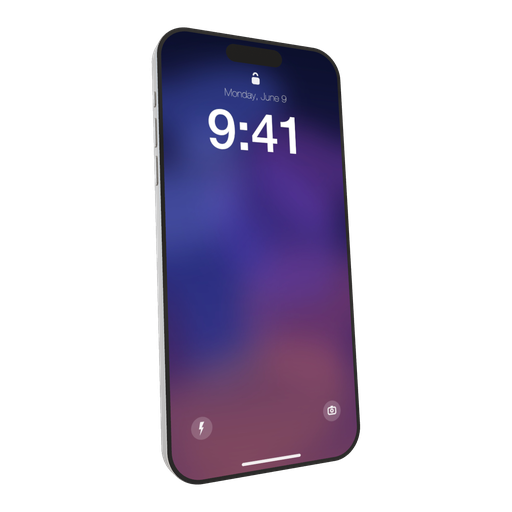
Not every product wants to look like a flagship. The standard iPhone 17 — aluminium frame, colourful finishes, the classic camera pill — reads friendlier and more consumer than the Pro models, which is exactly right for lifestyle, education, fitness and social apps. OpenMock models it separately from the Pro, so the proportions and the camera housing are the real ones, not a recoloured Pro.
iPhone 17 screen specs you need for a clean mockup
| Display | 6.3-inch Super Retina XDR, ProMotion |
| Native resolution | 1206 × 2622 px (portrait) |
| Aspect ratio | ≈19.5:9 |
| App Store screenshot slot | 6.3-inch — 1179 × 2556 (optional) |
| App Store preview video | 886 × 1920 portrait or 1920 × 886 landscape, 15–30 s |
The standard iPhone 17 shares the Pro's 6.3-inch, 1206 × 2622 display, so screenshots are interchangeable between the two models — only the frame differs (aluminium, vertical camera pill, brighter colours).
How to make an iPhone 17 mockup (about two minutes)
- Open OpenMock in a desktop browser. There is no account and no upload — your files stay on your machine.
- In the Mockup panel pick iPhone 17. The colour finishes are the point of this model; try two or three against your background before settling.
- Drag a screenshot or a screen recording onto the canvas. The screen is 1206 × 2622 like the Pro, so the same screenshots work on both.
- Set the canvas ratio in the top bar — 9:16 for Reels, TikTok and Shorts is where this device shines; 1:1 for feed posts.
- Frame it: pan, zoom, tilt and roll the camera, and keep the camera slightly above the phone so the colour of the frame is visible along the top edge. Choose a background (solid, gradient, image or blurred image) and a lighting environment (Studio, Concrete or Dark Room).
- Export. Image gives you PNG, JPEG or WebP at any preset or custom size — transparent PNG included — free forever. Video renders an MP4 with motion blur and optional audio.
Turning the iPhone 17 into a promo video
Bright finishes want bright scenes. Use the Studio environment, a soft gradient background in a complementary colour, and a gentle pan rather than a dramatic orbit. If the app is playful, a quick flap rotation on the first beat of the music (audio clips sit on the timeline too) makes a strong opener.
Video exports are free up to 720p at 30 fps with a small watermark. Pro ($5/month or $36/year) removes the watermark and unlocks 4K and 60 fps, plus project save/open so you can come back to a scene later.
Where an iPhone 17 mockup works best
- Consumer and lifestyle apps where a Pro model feels too corporate
- Colour-coordinated social campaigns — match the frame finish to the post
- Comparison shots: standard iPhone 17 vs 17 Pro to show the app on both
- Onboarding and help-centre illustrations with a transparent PNG export
Tips that make iPhone 17 renders look real
- Pair the frame colour with a background from the same family but two shades lighter
- Keep effects minimal — grain and heavy vignette fight the clean consumer look
- For Reels, leave the bottom quarter of the 9:16 frame clear for captions and the platform UI
- A 4–6 second static hold with only the screen recording moving is often more effective than camera motion
FAQ
Is the iPhone 17 mockup free?
Yes. Image exports (PNG, JPEG, WebP, including transparent PNG) are free with no signup and no watermark. Video exports are free at up to 720p/30 fps with a watermark; Pro removes it and unlocks 4K and 60 fps.
What resolution should my iPhone 17 screenshot be?
Match the native display, 1206 × 2622 px (portrait), or any image with the same aspect ratio (≈19.5:9). OpenMock scales and fits the screen automatically, so a slightly different size still works — just avoid upscaling small captures.
Can I use a screen recording instead of a screenshot?
Yes. Drop an MP4 or MOV (including HEVC recordings straight from an iPhone or Mac) onto the iPhone 17; the recording plays on the screen and you can trim it, change its speed and animate the camera around it before exporting an MP4.
What is the difference between the iPhone 17 and 17 Pro mockups?
The display and screenshot sizes are identical (6.3-inch, 1206 × 2622). The frame differs: the 17 is aluminium with a vertical camera pill and brighter finishes; the Pro has the titanium look and the wide camera plateau.
Can I animate several iPhone 17 shots in one video?
Yes. Each shot on the timeline has its own camera keyframes, media and background; a video can cut or fade between shots, and text and logo shots slot in between.